How do I bulk send booking links?
You will have already run a report, which has found the patients you need to send a Patient Appointment Invitation to. There is a Bitesize Reference article about running reports How do I run reports?
We will use an Annual Review Invite report as an example.
- The report name indicates that you can send the patients a Patient Appointment Invitation.
- The system has already checked that the patients in the report are able to receive messages including links.
- The report name gives you the Link Type and the Comms Annex Preset to use for the patients in this report, so either make a note of the preset name, or make sure you can still see the report name in the next step.
- The Link Type for this report is Asthma Review. and the Comms Annex Preset for this report is Asthma Invite (AST1+L).

To carry out an action in SystmOne on all the patients in a report, select the report to highlight it, right-click on the report, then choose Actions from the drop down list that appears.
1. To send a message with a booking link attached, you choose Send Patient Appointment Invitation from the next drop-down list that appears.2. Now choose the booking link you want to use, in this example choose Asthma Review. from the drop-down list.
3. You will now see the Communications Annexe window where you can choose options for the message you are going to send along with the booking link.
- The first option is to tick the box asking SystmOne to use the patient's preferred contact method to send the message. This means the patient will receive the message in the way they have requested. If the patient hasn't expressed a preference or hasn't been asked yet, SystmOne will send an SMS to the patient.
- The next option is to choose the message preset that is included in the name of the report. You can move the Communications Annexe window around if you need to, so you can see the name of the report.
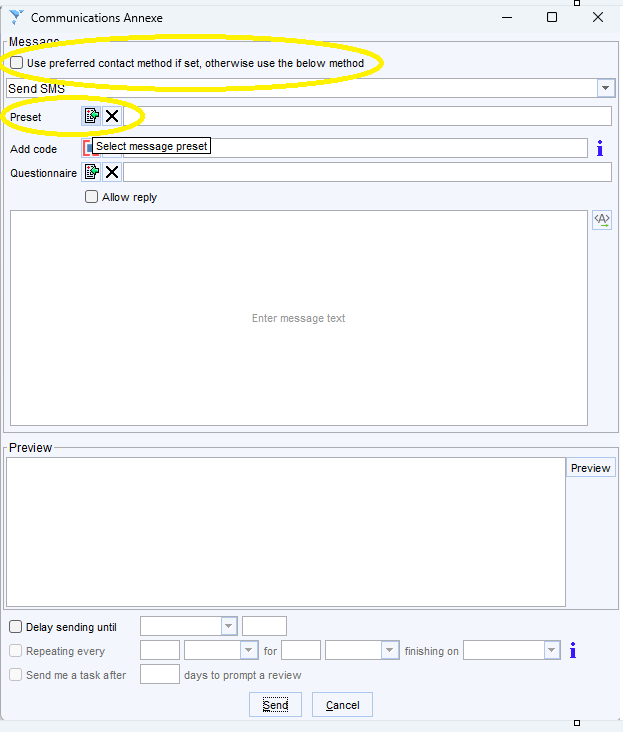
- When you click on the icon next to Preset, you will see the Select Message Preset window. Use the shorthand name included in the name of the report, including the brackets, in the search box to find the correct message preset. In this example the message preset shorthand name is (AST1+L). Highlight the message preset in the search results and click OK at the bottom of the window.
- You can see that the Communications Annexe window now includes everything you need to send the patients a message. If you want to make changes to the text of the message you can do this now, but be aware that this message will be sent to all the patients in the report.
- Click Send at the bottom of the window, and the message will be sent to all the patients in the report, with the booking link attached.