How do I activate prompts for GPs and clinicians?
Introduction
Prompts for GPs and other clinicians are configured in your SystmOne unit. This gives you complete control about which prompts you want to use, and who gets these prompts. The video below explains how this all works.
Activating Prompts
There are two prompts for GPs and clinicians. One will activate when a consultation is started, informing the GP / clinician what work to be done has been identified. The other will launch when the record is saved, asking them to confirm if they have actioned the work identified.
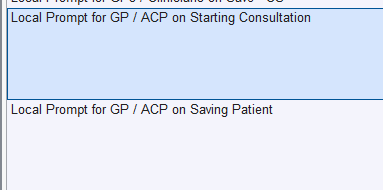
By default, the prompts are not activated. This gives you control over who receives them.
To activate the prompt for GPs / clinicians when a consultation is started ...
1. Locate the protocol Local Prompt for GP/ACP on Starting Consultation.2. Copy the protocol.3. Rename it to reflect your practice, for example Cleveland Practice GP/Clinician Prompt on Starting Consultation.4. On the Trigger tab, tick the box to Allow this protocol to launch automatically. From the drop-down, choose the option to trigger the protocol on Patient record retrieve.
5. Tick the box to Restrict triggering based on staff member. You can then choose specific roles, teams or staff to receive the prompt. You may want to ...
- Choose staff with the General Medical Practitioner access Role.
- Use Teams to assign the prompt to everyone in a specific team.
- You can also assign the prompt to Specific staff not in a team, for example an ACP or yourself if you manage this setup.
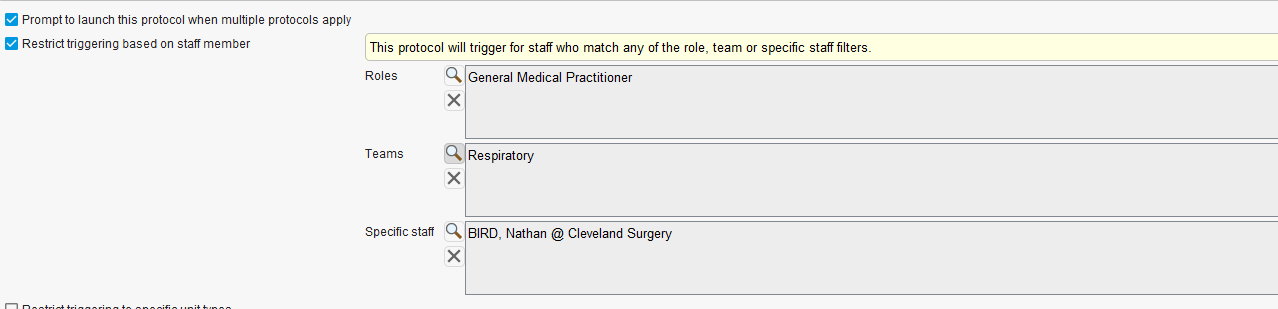
6. Publish the Protocol
- Once you've configured the prompt, Save and Publish it.
- This activates the prompts for the selected staff.
To activate the prompt for GPs / clinicians when a patient is saved ...
1. Locate the protocol Local Prompt for GP/ACP on Saving Patient.2. Copy the protocol.3. Rename it to reflect your practice, for example Cleveland Practice GP/Clinician Prompt on Saving Patient.
4. On the Trigger tab, tick the box to Allow this protocol to launch automatically. From the drop-down, choose the option to trigger the protocol on Patient saved.
5. Tick the box to Restrict triggering based on staff member. You can then choose specific roles, teams or staff to receive the prompt. You may want to ...
- Choose staff with the General Medical Practitioner access Role.
- Use Teams to assign the prompt to everyone in a specific team.
- You can also assign the prompt to Specific staff not in a team, for example an ACP or yourself if you manage this setup.
6. Publish the Protocol
- Once you've configured the prompt, Save and Publish it.
- This activates the prompts for the selected staff.


After publishing, you can return and amend the prompt to adjust which staff receive it.
If staff are getting duplicated prompts, ensure you assign roles carefully to avoid overlaps.

Remember to update the prompts regularly to include any new staff members, locums or role changes, as the prompts will not appear for roles, teams or staff members not selected in the trigger tab