How can I send childhood immunisation invites?
Introduction
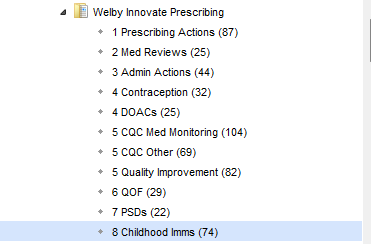
We have built reports you can use to invite your patients in for their childhood immunisations. The reports are in Welby Innovate Prescribing - 8 Childhood Imms
How do I use the reports?
- The reports are separated into different age groups (for example 8 WEEK BABY IMMS, PRE-SCHOOL IMMS).
- You then have the option to send 1st, 2nd and 3rd invites by appointment links, or call / send a letter to those who cant receive a link.
For further information on setting up appointment links, see our support article here How do I set up patient appointment links?
What if we don't have appointment booking links?
If you do not wish to use appointment links for childhood immunisations, you can send a generic SMS message or letter, or call the patient from the reports.

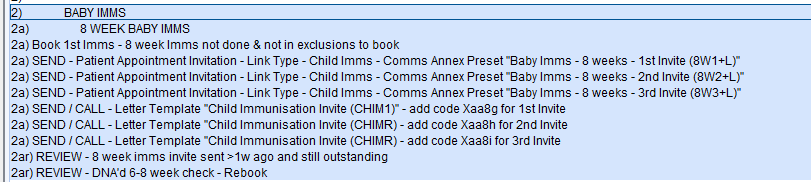
Just make sure that you add the 1st, 2nd or 3rd invite code stated on the letter reports for each relevant immunisation age group.
For example, the letter reports for 8 WEEK BABY IMMS are below, and state the codes you need to add. Each age group will have different codes stated on the letter reports in their relevant section.

What happens if patients don't respond?
If a patient does not book or DNA the appointment, they will appear in the REVIEW reports to find patients who have been invited and are still outstanding.
What if a baby / child is already up to date?
We have added an option to record that a baby / child is up to date with their immunisations and doesn't need any invites until the next part of the schedule. This option has been added to manage patients who may have had their immunisations slightly early.
This option should only be used following a clinical review of the patient's immunisation record.
The codes to add are as follows, and should be added together in order to remove the patient from invite reports until the next part of the schedule.
Medical records review (XaE42)Up-to-date with immunisations (68N1.)
How do we book appointments?
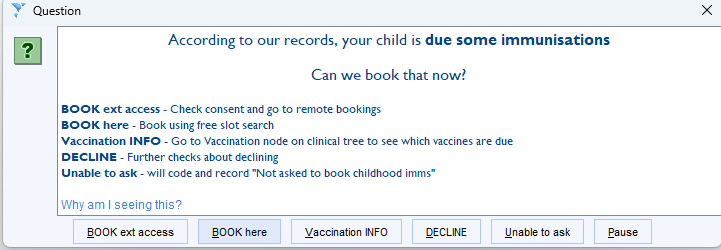
Once patients have been invited, the Green A booking prompt will then direct staff to book the appointment as shown below.
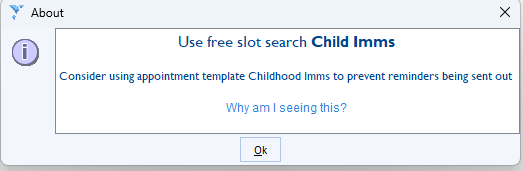
It will direct staff to use the Free Slot Search Child Imms.
For more information on Free Slot Searches see our support article here How do I configure free slot searches?